
Like us, you might be interested in learning about the most popular YouTube videos and how to download them. However, we must first issue the following caution: The YouTube Terms of Service are broken when videos are downloaded from the site via unauthorised techniques like third-party apps. Although it’s not necessarily unlawful, it could result in your YouTube account being suspended.
Even for casual downloaders, Google doesn’t seem to care much about enforcing this individually, but the corporation occasionally engages in a game of cat and mouse to try and thwart third-party programmes that are made specifically for this reason. After that, let’s look at how to download YouTube videos from any location using a PC, iPhone, iPad, Android, or Mac.
How to download YouTube videos on PC or Mac
Use a Youtube Video Downloader Program
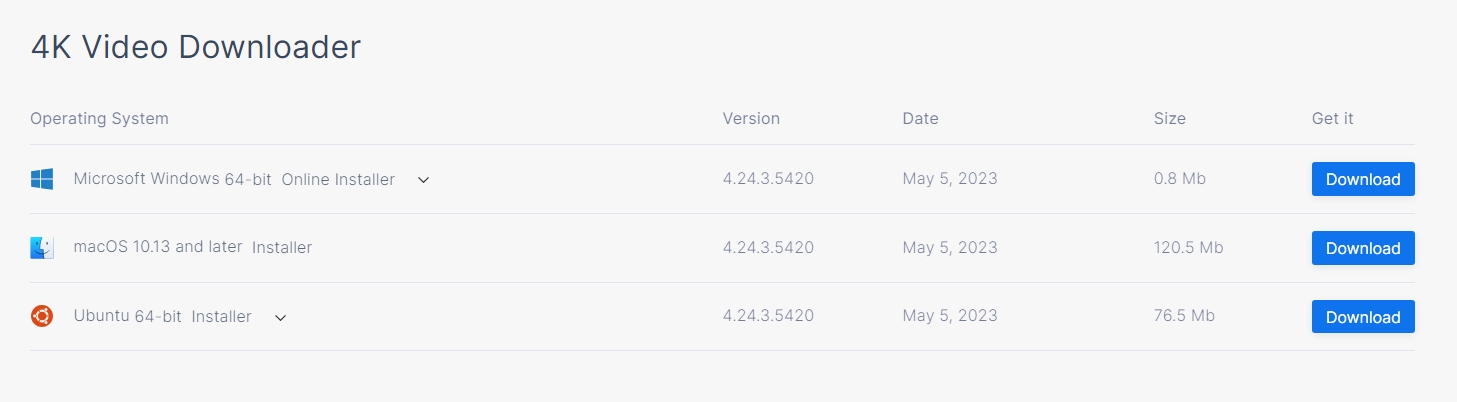
Go to the 4K Video Downloader website and click the blue Download button under 4K Video Downloader that is appropriate for your computer’s operating system. Windows, MacOS (10.13 or later), and Ubuntu all support this software. Run the installer after it has downloaded to install the software on your computer.
Please don’t be turned off by the name if you don’t have a 4K display. This is one of the most flexible and user-friendly download tools available, and it is compatible with all of your files regardless of the display resolution of your computer. This software’s free edition supports 3D and 360-degree videos, allows for the download of subtitles, and allows for the customization of video quality up to 4K.
- Just head over to the YouTube video you want to download and copy its URL from the address bar at the top of your browser window. With the URL locked and loaded in your clipboard, you can close the window or tab of the video.
- Open up the 4K Video Downloader application you just installed. There’s no need to manually paste in the URL — just click on the Paste Link button in the top-left corner of the menu bar and the software will grab the URL from your computer’s clipboard.
- The 4K Video Downloader will take a few moments to process the video. Once this process is complete, the app will let you choose from different video qualities, formats, and conversions, as well as where to save the video locally when it’s down downloading.
- Once you pick all your preferred options, click the Download button. A progress page will then appear, detailing the size of your download, how fast it’s downloading, and how much time remains in your download. You can pause the download if you need to without losing any progress.
How to download YouTube videos on iPhone or iPad
Subscribe to YouTube Premium

One feature of YouTube Premium, a paid subscription service, is the ability to download videos directly from the YouTube app to your smartphone. Unless you are eligible for the $7/month student plan, you will need to pay about $12 each month for this. For a single $23 monthly subscription, you can share a family plan with up to six members of your home as long as they are all connected to your Google family group.
The nicest part about it is that it’s Google-approved, so there aren’t any ambiguous legal issues. It’s the easiest way to save videos for offline watching. There is, of course, a catch. One of the limitations of the YouTube iOS app is that you can only download content in 1080p resolution. Additionally, you don’t actually get to keep those films; the purpose of YouTube Premium’s download option is to just allow you to watch downloaded videos when you have spotty or no network connectivity.
These videos are linked to both your YouTube Premium subscription and the original material, and you cannot save them elsewhere other than the YouTube app. Therefore, if you stop using YouTube Premium or if the original video is taken down from YouTube, those downloaded videos will also be deleted. However, YouTube Premium is the quickest and best option to download YouTube videos to your iPhone if watching them offline is your main motivation.
Through the link below, you can test YouTube Premium for free for one month if you have never signed up before. You can also sign up through the YouTube app for iOS, but we don’t advise it because Google charges an additional 30% to cover Apple’s additional expenses on the App Store. An individual membership through the YouTube app costs $16, whereas the same plan can be purchased directly from Google for $12.
Use an app like Offline to download YouTube videos
You must use third-party software if you want to download YouTube videos in a more permanent format. Many iPhone and iPad apps that can do this may be found by searching the App Store, but you should read the small print because many of them are free to download but demand in-app purchases or subscriptions to unlock their full functionality.
Offline is one choice that merits consideration. There are no additional fees or hidden charges with this software. Instead, it has minimal advertising and isn’t limited to YouTube videos. This allows you to download content from Facebook, Twitter, Instagram, TikTok, and Soundcloud. Files can be exported to iCloud, imported into the programme, and played there. They can also be AirDropped to your Mac and kept there.
The greatest drawback is that Offline can only save videos with a resolution of 640 x 480 at most. On an iPhone, that’s not awful for offline viewing, and you can keep plenty of videos without using up a lot of space. It’s not the best option, though, if you want higher-quality videos to appear on a larger screen.
Record YouTube videos locally by using Screen Recorder
Since the 2017 release of iOS 11, you can record your iPhone or iPad screen and anything playing on it, including YouTube videos. This method is right on your device, making it free and easy to use.
- Pull the video up on YouTube.
- Change the orientation to landscape.
- Swipe up on the Control Center and tap the Record button (a circle inside a circle).
- When the video finishes, tap the Record button again to stop recording.
- The video saves to your Camera Roll.
Download the YouTube video on a PC or Mac and move it to an iPhone or iPad
You can use a variety of tools, both free and paid ones, on a computer to download YouTube videos, such as the aforementioned 4K Video Downloader. You must then transfer the videos to your iPhone when they have been downloaded. It’s a good technique to get downloaded videos onto your iPhone or iPad even though it’s not strictly for downloading to your iPhone. For Android, this method will also work, although the transfer process will be slightly different.
Follow the above instructions to download the YouTube video, then use AirDrop to send it to your iPad or iPhone or save the clip to a third-party cloud service, such as Google Drive, Dropbox, or even iCloud, to enable offline watching. The alternative is to use a Lightning cable to connect your iPad or iPhone to your computer and perform the transfer manually.